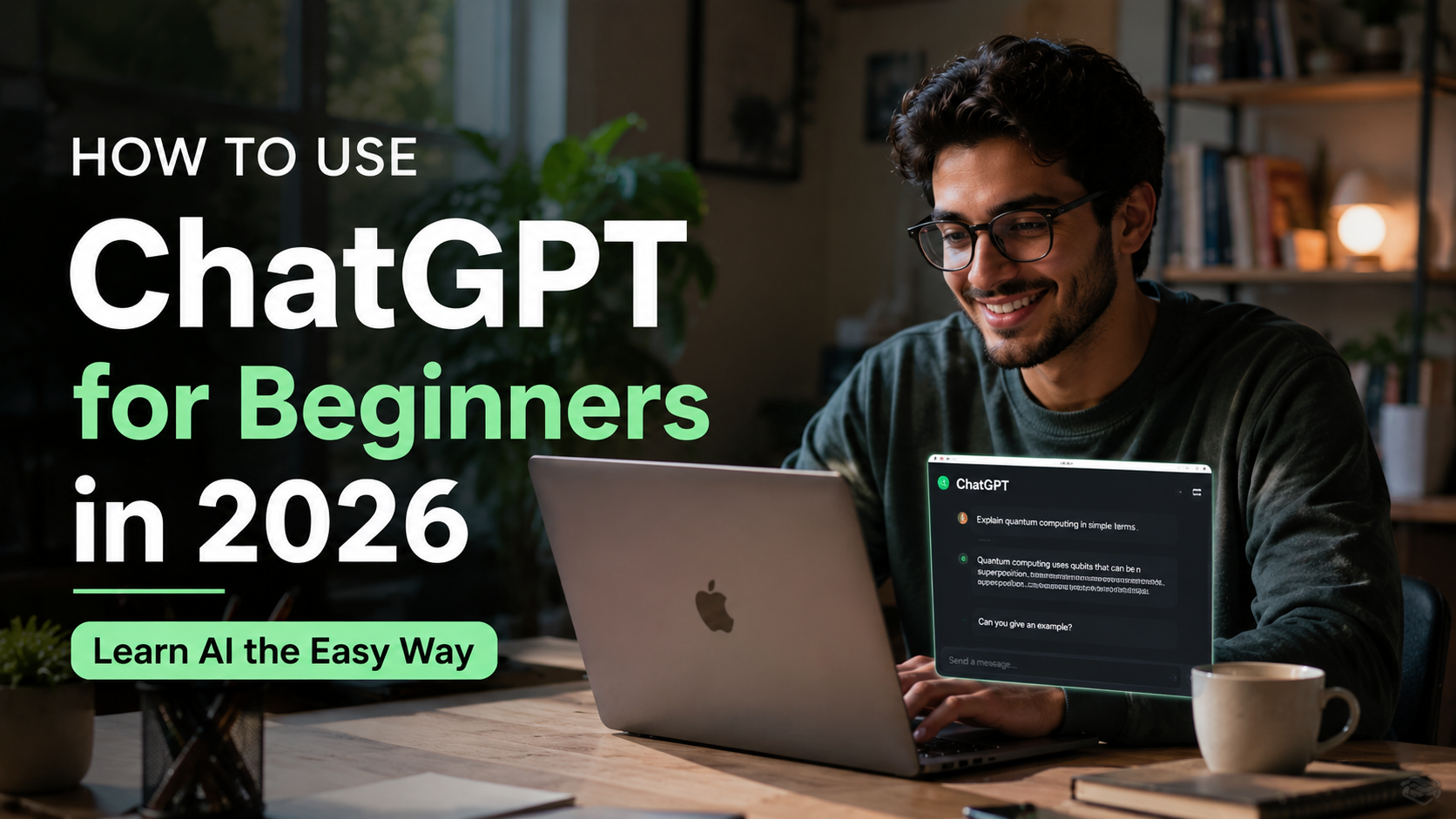
If you’ve heard everyone talking about ChatGPT but have no idea where to start — you’re in the right place. This guide walks you through everything from signing up to having your first real conversation with AI. No tech background needed. Let’s get into it.
What Is ChatGPT, and Why Does It Matter in 2026?
ChatGPT is an AI chatbot made by OpenAI. You type something, it writes back — kind of like texting a very knowledgeable friend who never sleeps and never judges your questions.
By 2026, ChatGPT has become one of the most widely used productivity tools on the planet. Students use it to study. Writers use it to brainstorm. Small business owners use it to draft emails, create content, and solve problems fast.
The good news? You don’t need to be a tech person to use it. If you can type, you can use ChatGPT.
Step 1: Create a Free ChatGPT Account
How to Sign Up in Under 5 Minutes
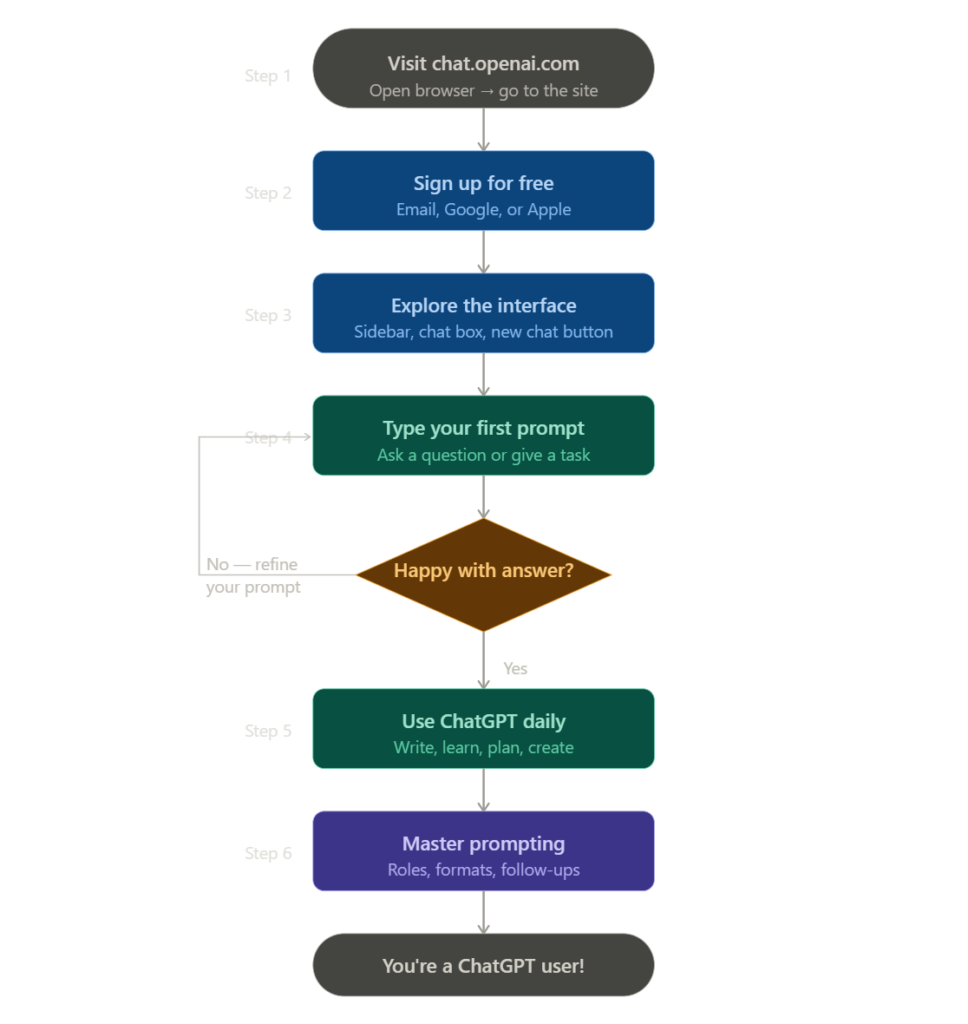
- Open your browser and go to chat.openai.com
- Click the “Sign Up” button
- Enter your email address (or sign in with Google or Apple)
- Create a password and verify your email
- That’s it — you’re in
Tip: You don’t need to enter a credit card for the free plan. OpenAI offers a solid free tier that’s more than enough for beginners.
Free vs. Paid Plan — Which One Should You Choose?
| Feature | Free Plan | ChatGPT Plus (Paid) |
|---|---|---|
| Access to GPT-4o | Limited | Full |
| Response speed | Slower during peak hours | Faster |
| Advanced tools (image gen, data analysis) | Limited | Full |
| Monthly cost | $0 | ~$20/month |
Our recommendation: Start with the free plan. Once you’re using ChatGPT regularly and want more features, upgrade to Plus.
Step 2: Learn the ChatGPT Interface
When you first log in, the screen is clean and simple. Here’s what you’ll see:
- A large text box at the bottom — this is where you type your questions or requests
- A sidebar on the left — this shows your previous conversations (called “chats”)
- A “New Chat” button — click this to start a fresh conversation
That’s really all there is to the interface. Don’t overthink it.
What’s a “Prompt”?
A prompt is just what you type to ChatGPT. It can be a question, a command, or a topic you want to discuss.
Example prompts:
- “Explain what inflation means in simple terms.”
- “Write a birthday message for my coworker, keep it funny.”
- “Give me 5 dinner ideas using chicken, pasta, and tomatoes.”
The better your prompt, the better the response. We’ll cover that more in Step 4.
Step 3: Have Your First Conversation
It’s Easier Than You Think
Just click in the text box, type your message, and hit Enter (or click the send button). ChatGPT will respond in a few seconds.
Try this right now:
“Hi! I’m new to ChatGPT. Can you explain what you can help me with?”
ChatGPT will give you a friendly overview of what it can do. Think of this as your orientation session.
How to Continue the Conversation
ChatGPT remembers everything said in the current chat. So you don’t have to repeat yourself. You can follow up naturally:
- “Can you make that simpler?”
- “Give me an example.”
- “What about for a 10-year-old?”
This back-and-forth is called a conversation thread, and it’s one of the most powerful features of ChatGPT.
Step 4: Write Better Prompts (Get Better Results)
This is the skill that separates beginners from power users.
The Golden Rule of Prompting
Be specific. The more context you give, the better the answer.
| Weak Prompt | Strong Prompt |
|---|---|
| “Write an email” | “Write a professional email to my manager asking for a day off next Friday. Keep it short and polite.” |
| “Give me workout advice” | “I’m a 35-year-old beginner with 30 minutes a day. Give me a simple home workout plan with no equipment.” |
| “Explain AI” | “Explain artificial intelligence to me like I’m 12 years old. Use a fun analogy.” |
3 Prompting Techniques That Work
1. Give ChatGPT a role:
“You are a financial advisor. Explain the difference between a Roth IRA and a traditional IRA.”
2. Ask for a specific format:
“List the top 5 reasons to exercise regularly. Use bullet points.”
3. Tell it who the audience is:
“Explain climate change for a 7th grader writing a school report.”
Step 5: Explore What ChatGPT Can Actually Do
Here are some of the most practical ways real people use ChatGPT in 2026:
For Writing and Editing
- Draft emails, cover letters, and resumes
- Proofread and improve your writing
- Write social media captions
- Summarize long articles
Example: Paste a long email into ChatGPT and say: “Summarize this email in 3 bullet points.”
For Learning and Research
- Explain complex topics in plain English
- Create study guides and flashcards
- Answer your “why” and “how” questions instantly
Example: “Explain how the stock market works. Use a simple analogy.”
For Work and Productivity
- Create to-do lists and project outlines
- Brainstorm ideas
- Write meeting agendas
- Translate text into other languages
Example: “Create a weekly meal prep plan for someone trying to eat healthier on a budget.”
For Creative Projects
- Write short stories or poems
- Generate ideas for videos, blogs, or podcasts
- Help with scripts, song lyrics, or jokes
Step 6: Understand ChatGPT’s Limitations
ChatGPT is powerful, but it’s not perfect. Here’s what you need to know:
What ChatGPT Can Get Wrong
- It can “hallucinate” — meaning it sometimes states incorrect facts confidently. Always verify important information from a trusted source.
- It doesn’t know real-time news — unless it has web access enabled, its knowledge has a cutoff date.
- It can be vague — if your prompt is unclear, the answer will be too.
What ChatGPT Should NOT Be Used For
- Medical diagnoses (talk to a real doctor)
- Legal advice (consult a lawyer)
- Financial decisions without professional guidance
Use it as a starting point, not the final word.
Tips for Getting the Most Out of ChatGPT
Here are 7 practical tips that make a real difference:
- Use “Continue” — if a response gets cut off, just type “continue” and it’ll pick up where it left off.
- Ask for revisions — “Make this shorter,” “Make it more formal,” or “Rewrite this in a friendlier tone.”
- Save useful chats — Your sidebar stores all conversations. Rename them so you can find them later.
- Use it daily — Like any tool, you get better the more you use it.
- Don’t be afraid to ask “dumb” questions — ChatGPT never judges. Ask whatever you need.
- Start a new chat for new topics — This prevents the AI from mixing up contexts.
- Try the mobile app — OpenAI has a free app for iOS and Android. Great for on-the-go use.
Frequently Asked Questions (FAQ)
Is ChatGPT free to use?
Yes! ChatGPT has a free tier that’s great for beginners. The paid plan (ChatGPT Plus) unlocks faster speeds, advanced models, and tools like image generation. Most people start for free and upgrade if they need more.
Is ChatGPT safe?
Yes, for general use. Avoid sharing sensitive personal information like your Social Security number, passwords, or banking details. OpenAI has privacy policies in place, but it’s good practice to treat any online platform with reasonable caution.
Can ChatGPT browse the internet?
In 2026, ChatGPT can browse the web when the feature is turned on (usually in the paid plan). The free version may still rely on its training data, which has a knowledge cutoff. Check your settings or ask ChatGPT directly if it has web access in your current session.
Is ChatGPT better than Google Search?
They’re different tools. Google is better for finding specific websites, current news, or local information. ChatGPT is better for explaining things, creating content, and having a conversation. Many people use both together.
Can I use ChatGPT on my phone?
Absolutely. Download the official ChatGPT app from the App Store (iOS) or Google Play (Android). It’s free and works the same as the desktop version.
Does ChatGPT remember me between sessions?
ChatGPT has a Memory feature that can remember facts about you across conversations (like your name, preferences, or job). You can turn this on in Settings > Personalization > Memory. If it’s off, each new chat starts fresh.
Conclusion: You’re Ready to Start
ChatGPT isn’t something you master in a day — but you don’t need to. Start small. Ask it one question. Then another. The more you use it, the more naturally it fits into your daily life.
Here’s a quick recap of what you learned:
- ✅ How to create a free account
- ✅ How to navigate the interface
- ✅ How to write prompts that actually work
- ✅ What ChatGPT can and can’t do
- ✅ Practical use cases for real life
The best way to learn? Just start talking to it. Open a new chat right now and type:
“What’s something cool I can do with ChatGPT that most beginners don’t know about?”
You might be surprised what you find.
Found this guide helpful? Bookmark it and share it with someone who’s new to AI. More beginner-friendly tutorials coming soon.